AUDIOSUITE
ESSPLIT
The best de-esser is you. ESSPLIT only does the prep.
AAX AudioSuite · macOS
Free 30 days Download v1.0.3 →
$50 Buy now →
One installer for everyone. A licence unlocks it permanently, on up to three computers.
The best de-esser is you. ESSPLIT only does the prep.
AAX AudioSuite · macOS
One installer for everyone. A licence unlocks it permanently, on up to three computers.
In my years of mixing I have chosen and used a lot of de-essers. What I have come to believe is that setting the level by hand, one sound at a time, still gives the best result. "Hmm, this one is over-processed" — "that ess is still harsh" — while you sit there nudging a threshold, you could have ridden clip gain through the whole take and been done. And this way of working will never go out of date: whatever comes along next, nothing will sound more like what you intended. The catch is that editing a waveform that finely takes a bit of work. So I built something to help with that part — so that the work comes out better.
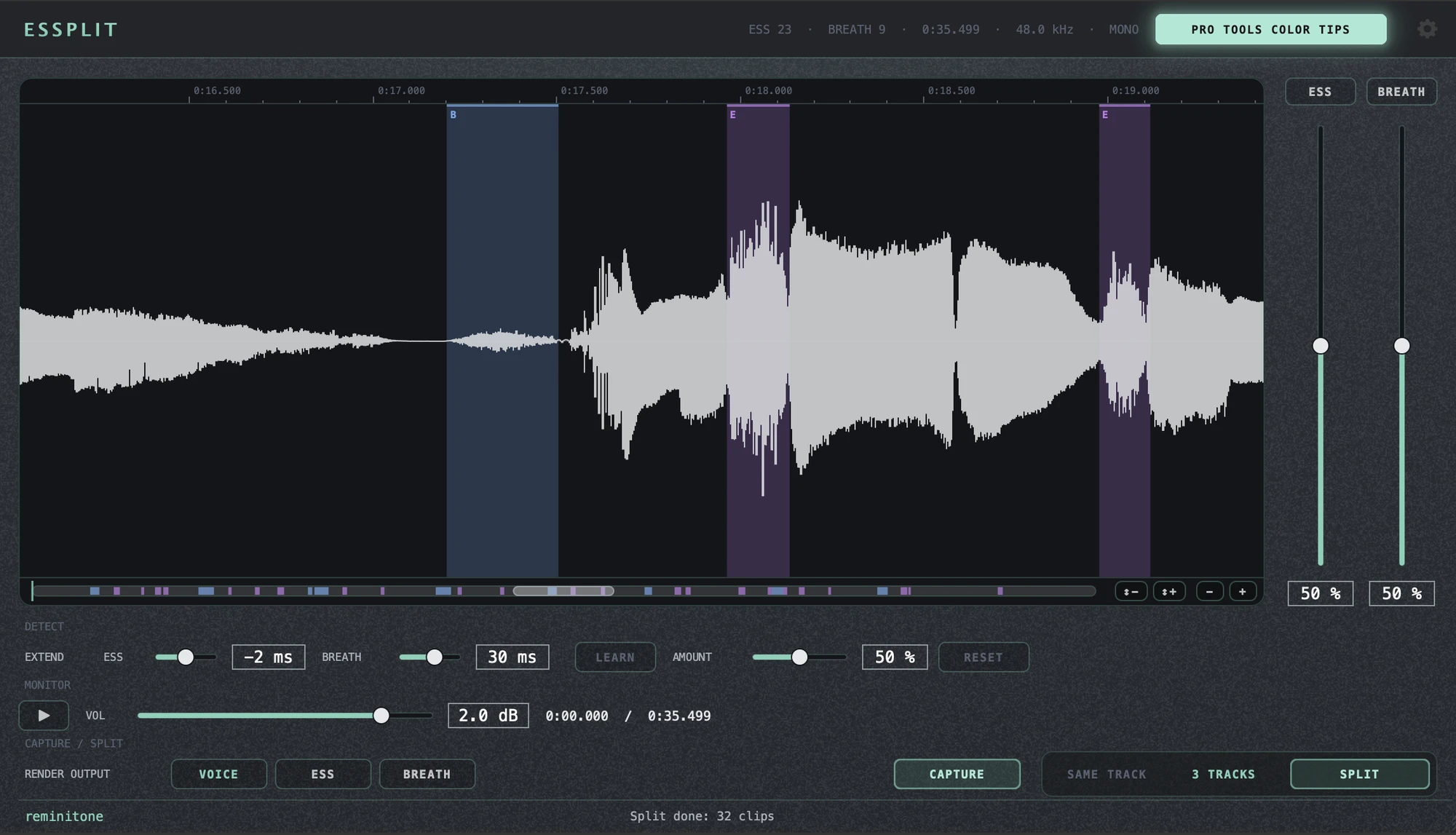
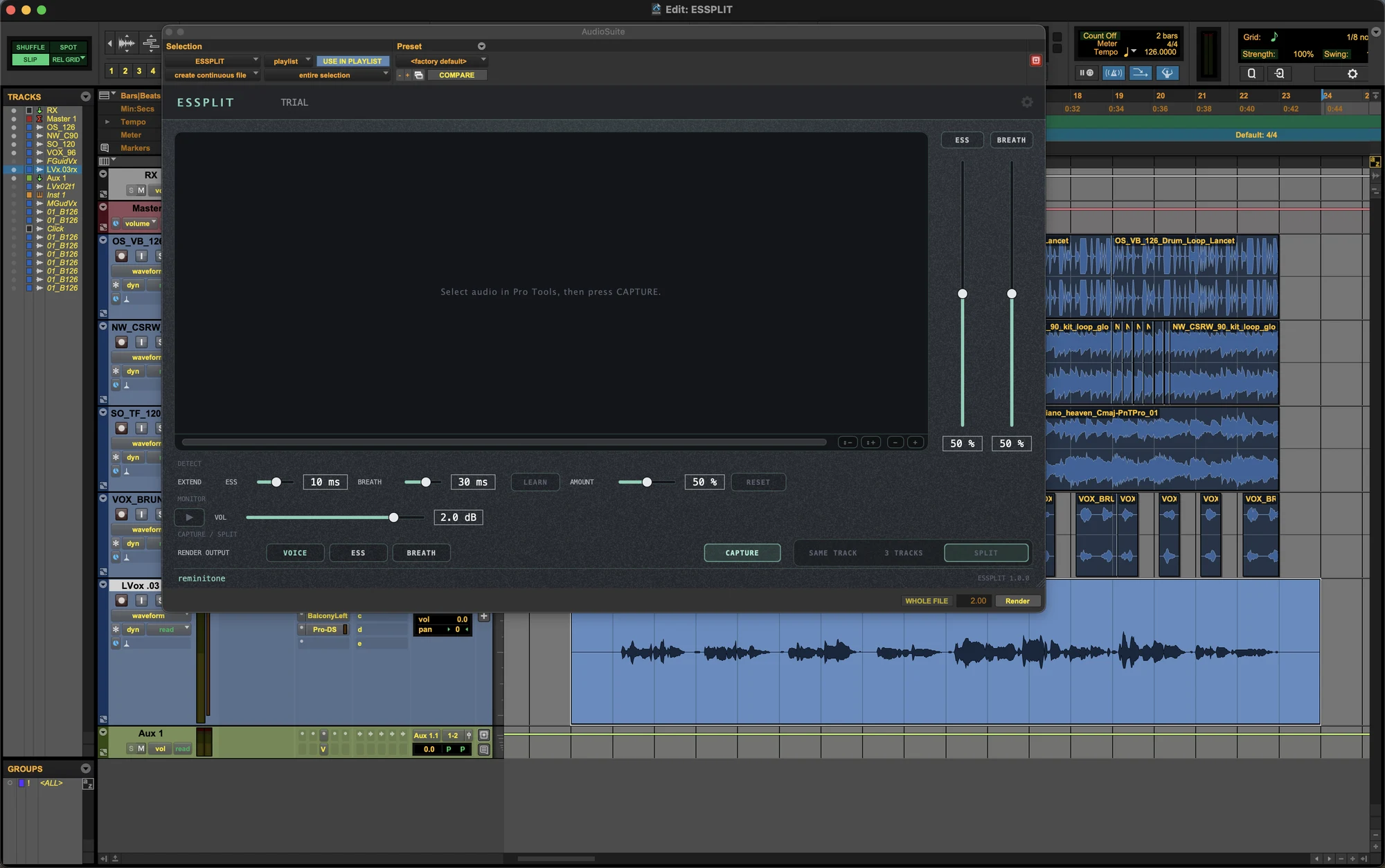
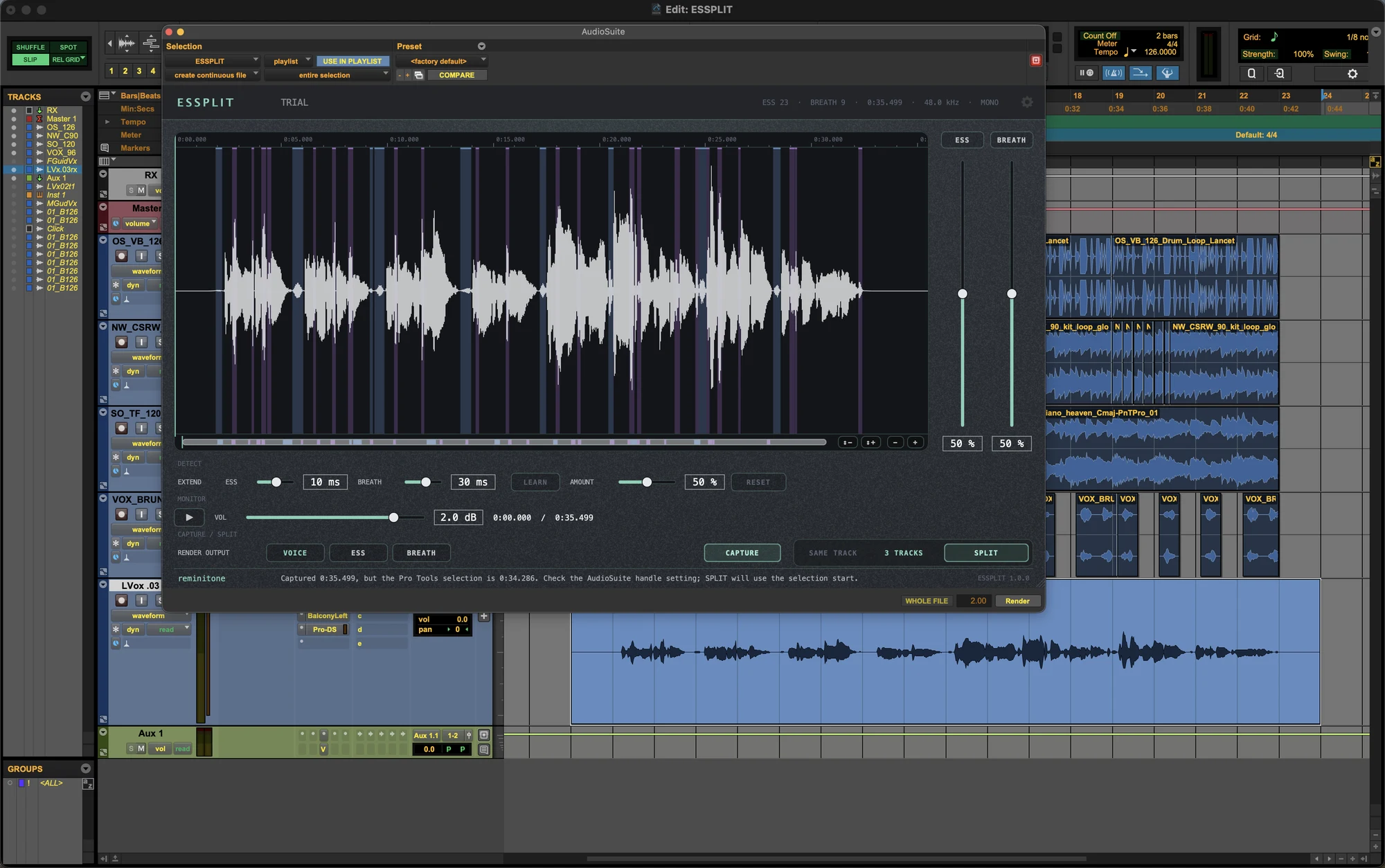
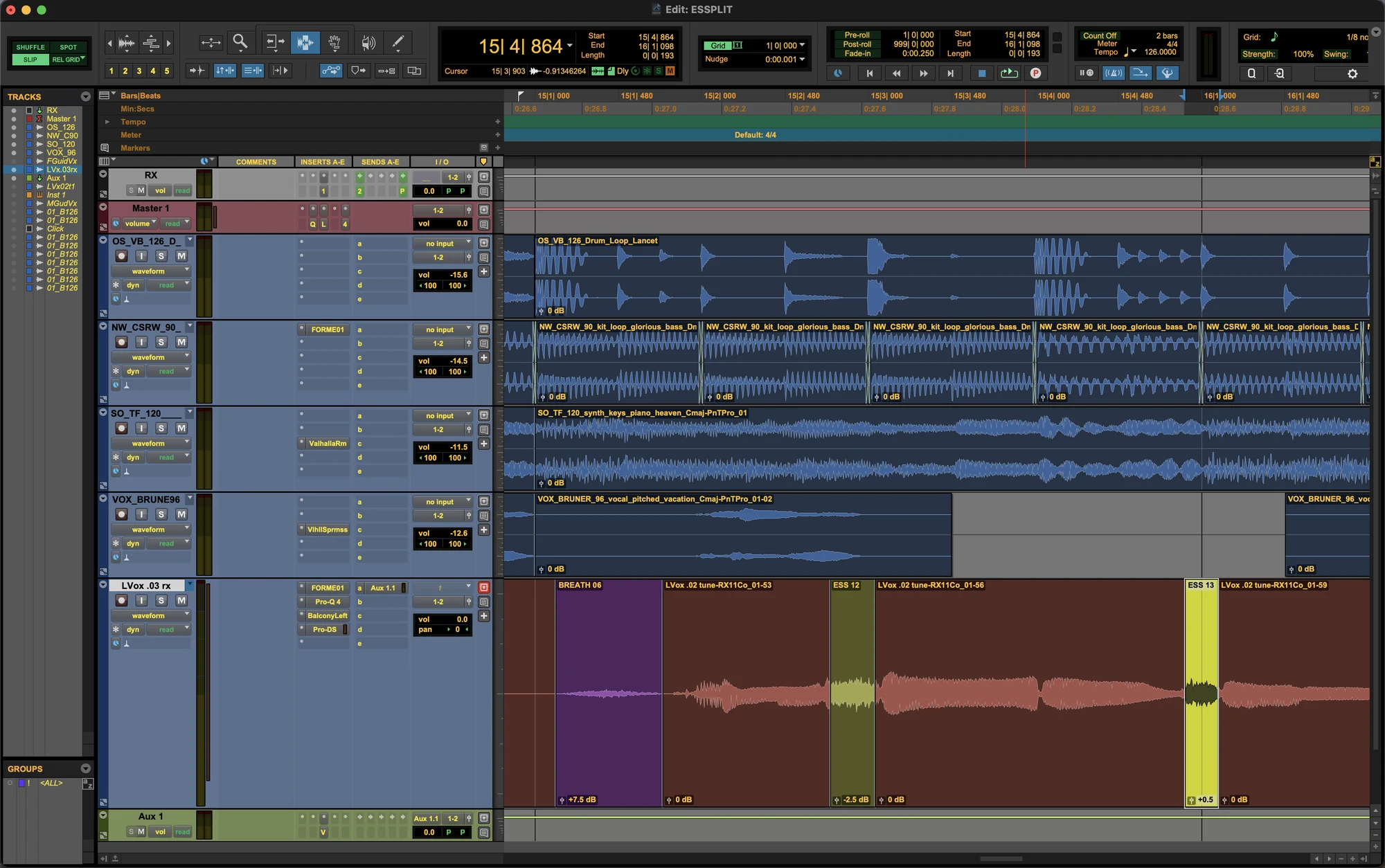
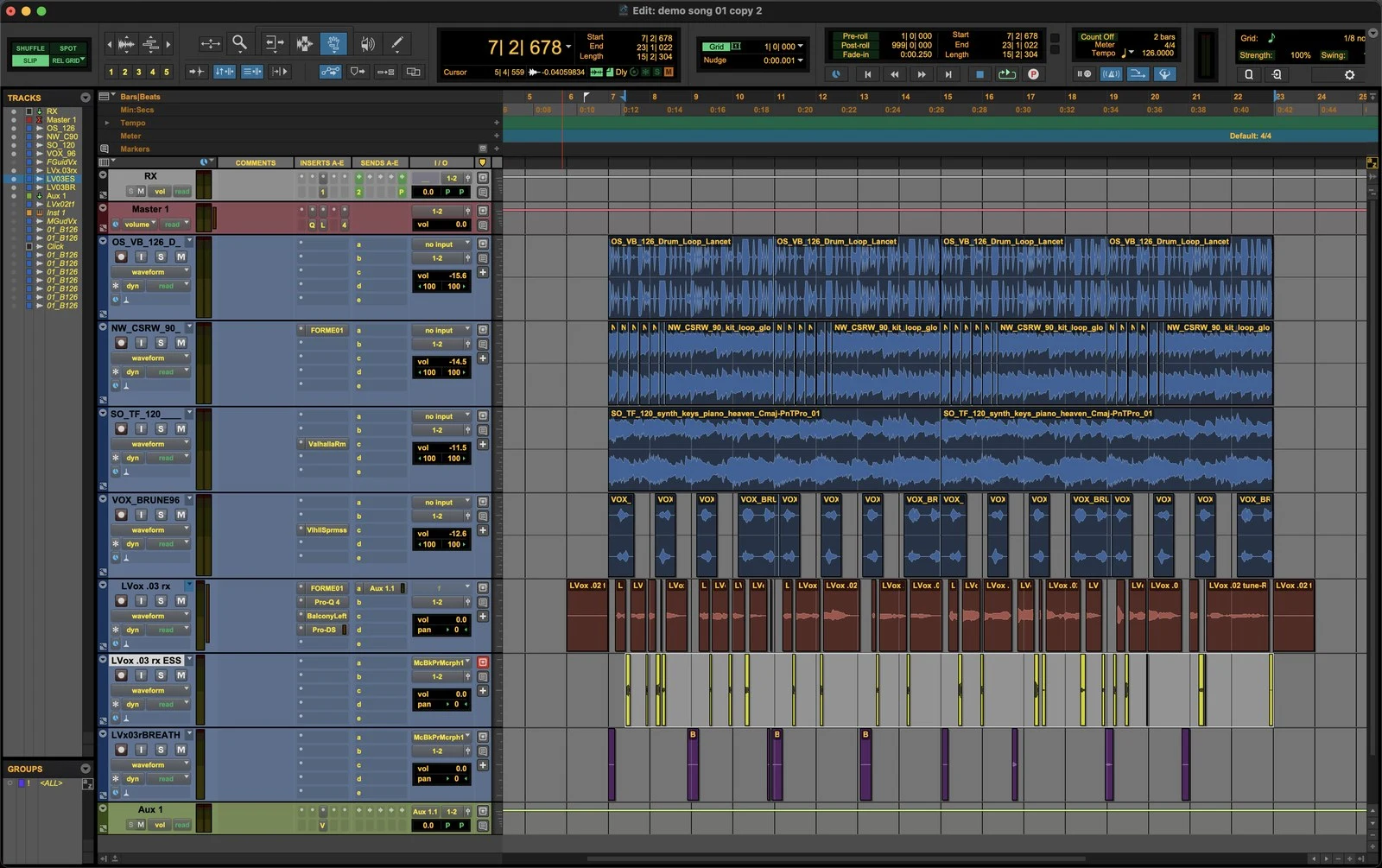
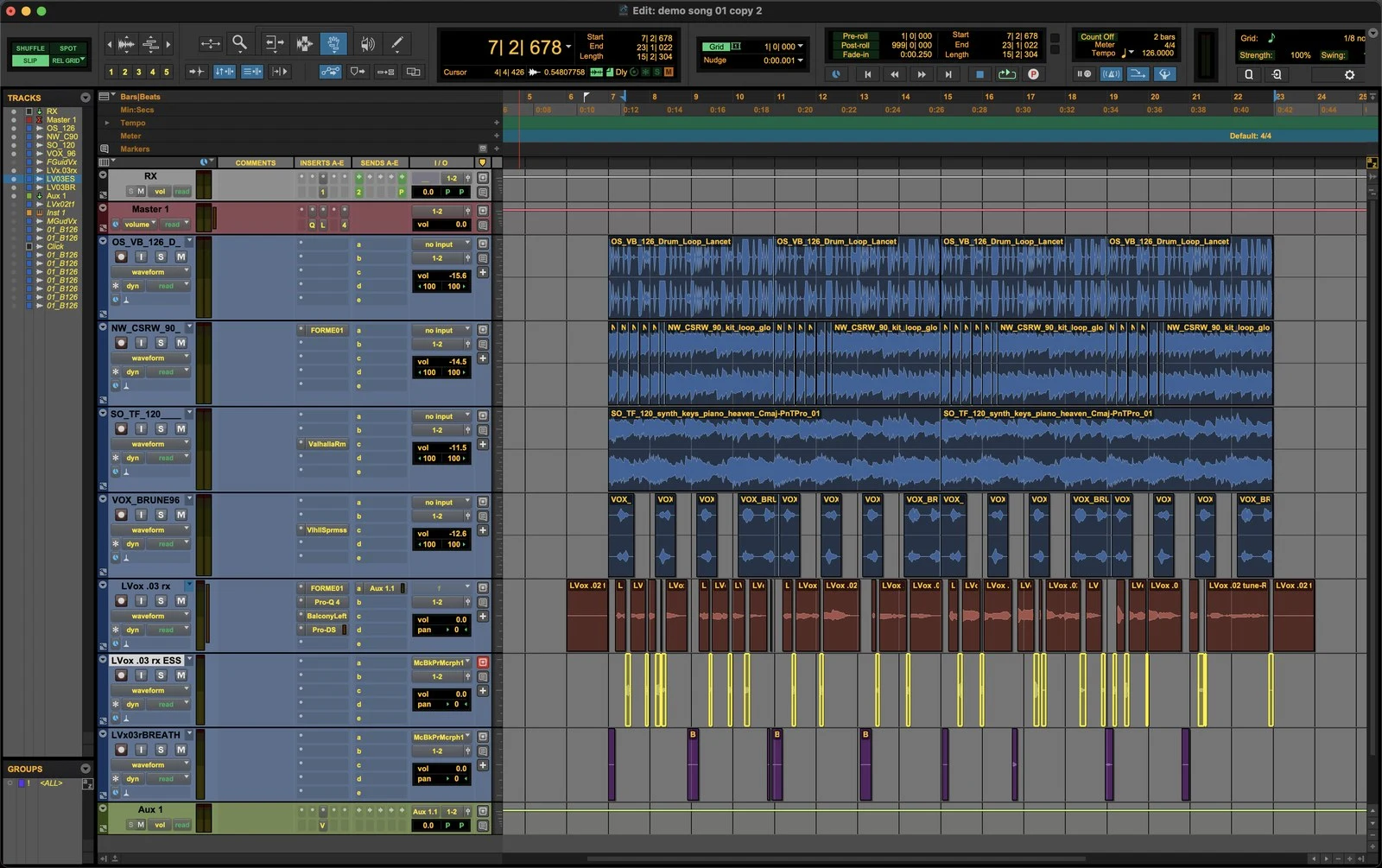
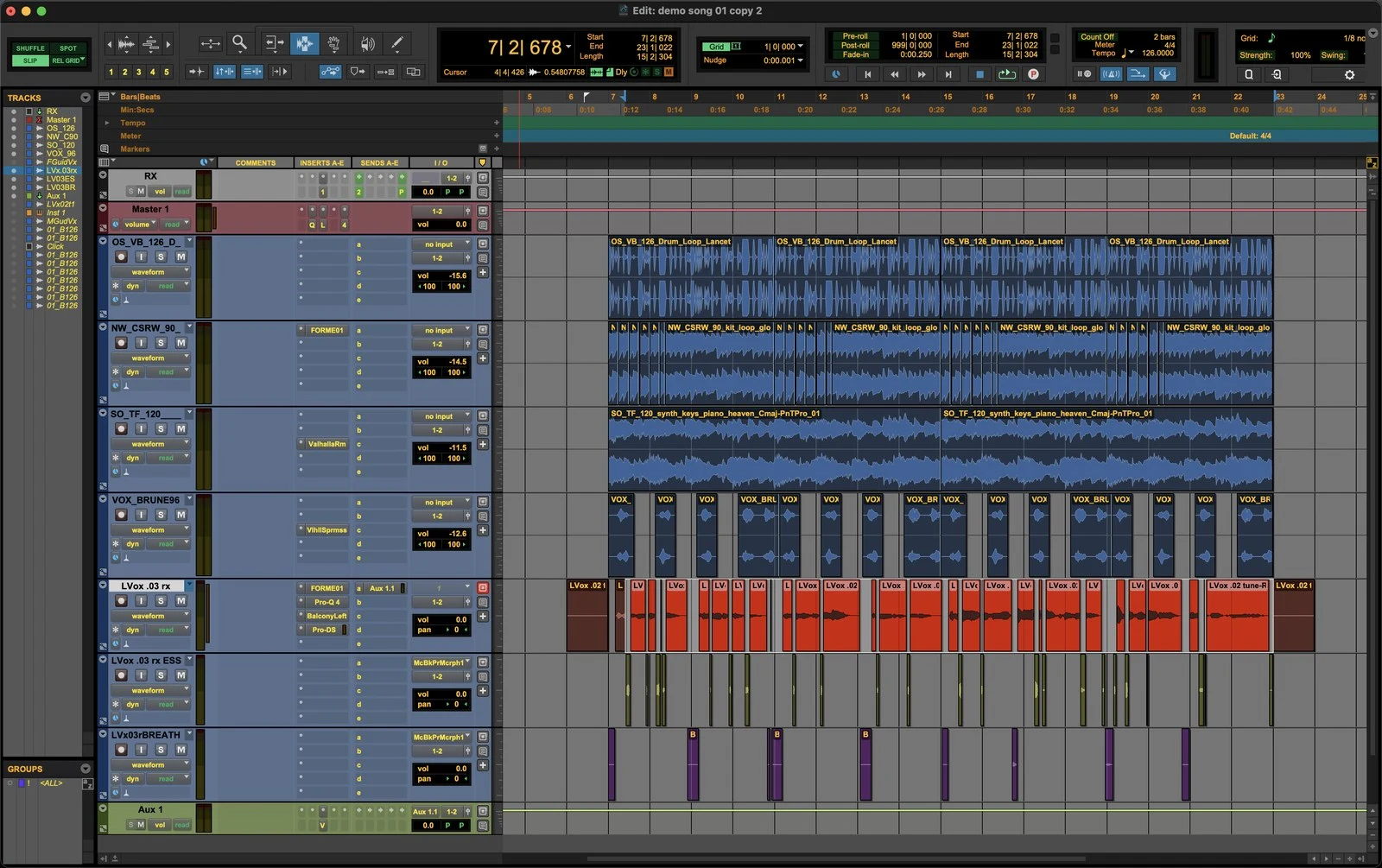
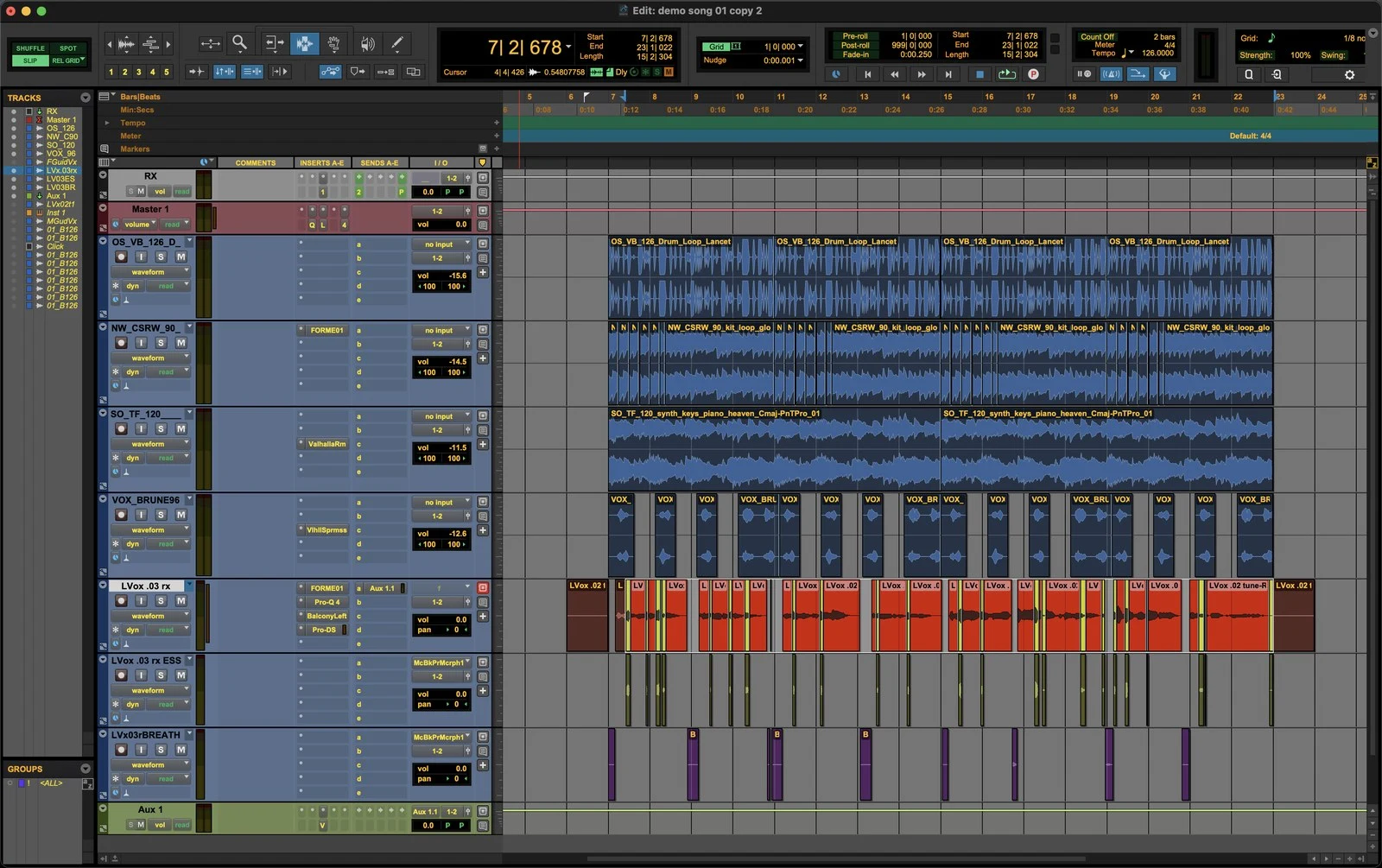
ESSPLIT is an AudioSuite plug-in for Pro Tools. It detects esses and breaths in a vocal or dialogue selection and cuts the original clip at exactly those points. Each one becomes a clip of its own, ready for you to set its level.
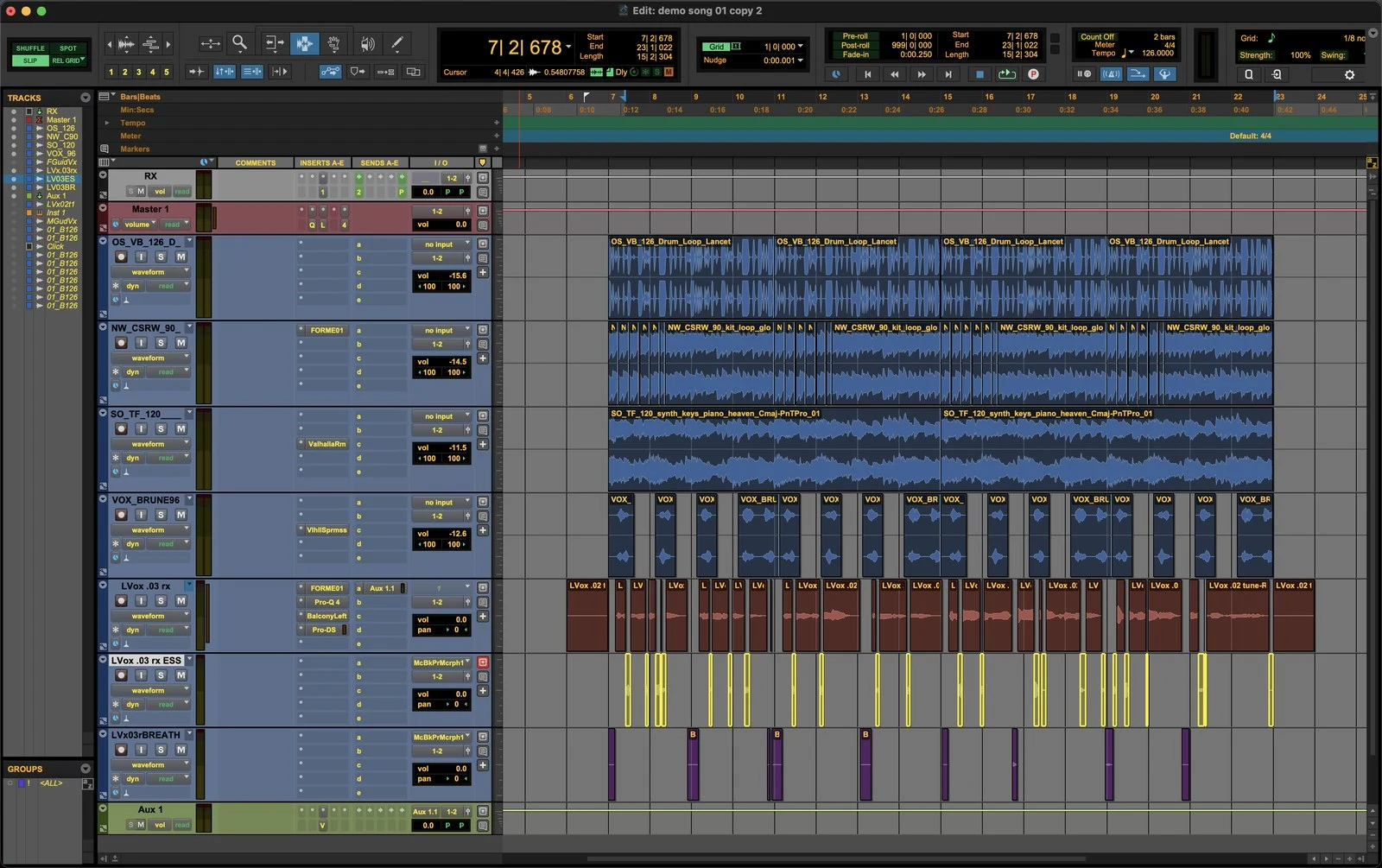
Nothing is rendered and nothing is replaced. The split is an ordinary, non-destructive clip separation: the same audio, the same track, just cut where a careful editor would have cut it. What used to be an hour of zooming and slicing is one button.
There is a word we engineers are fond of: reversible. Select what ESSPLIT cut and press ⌘H — Heal Separation — and it is one clip again. No new audio files are created.
A de-esser decides for you, the same way for every syllable. Clip gain doesn't: this ess down 3 dB, that one untouched, this breath halved, that one gone. ESSPLIT doesn't touch the sound at all. It does the finding, and leaves the judgement where it belongs.
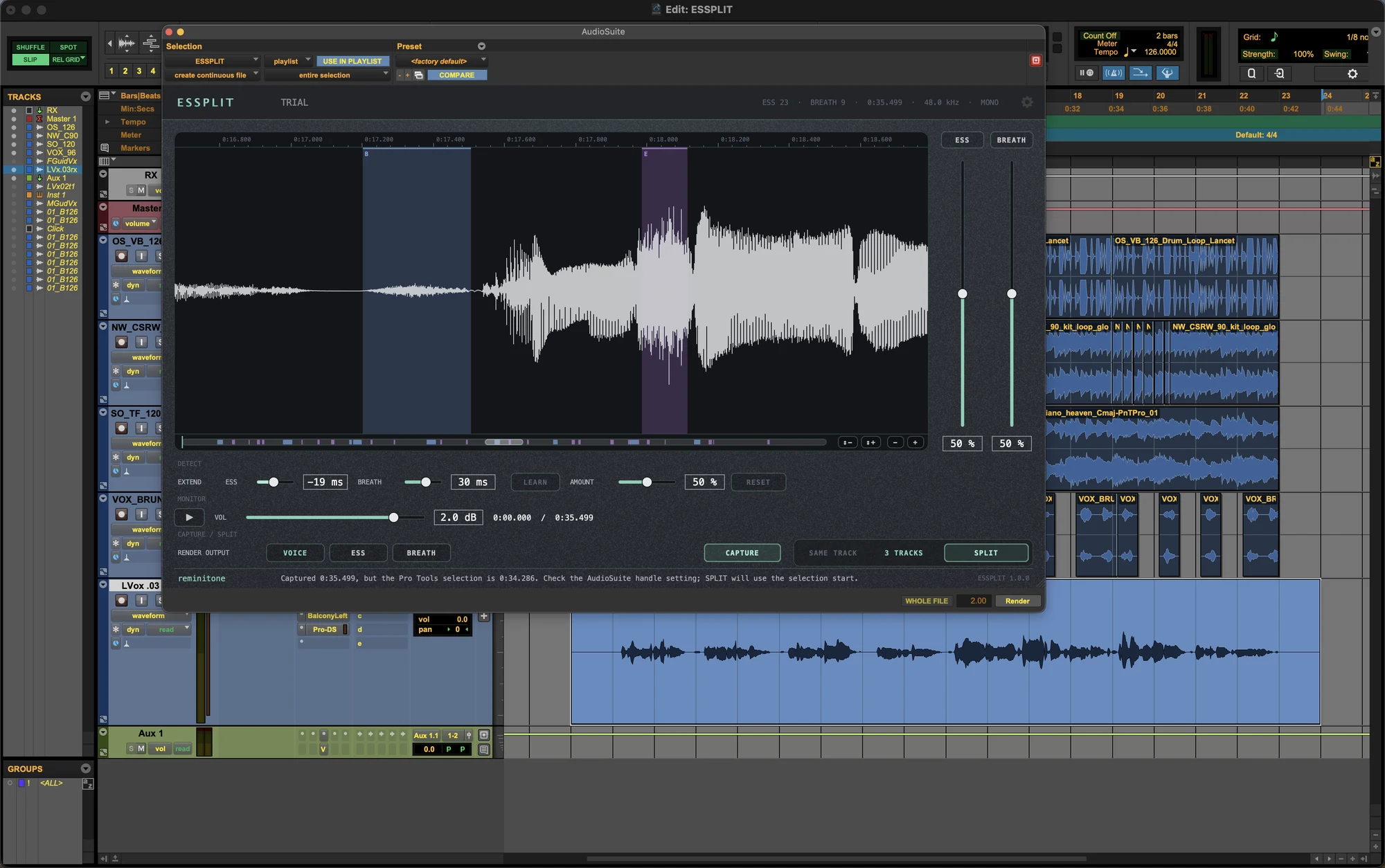
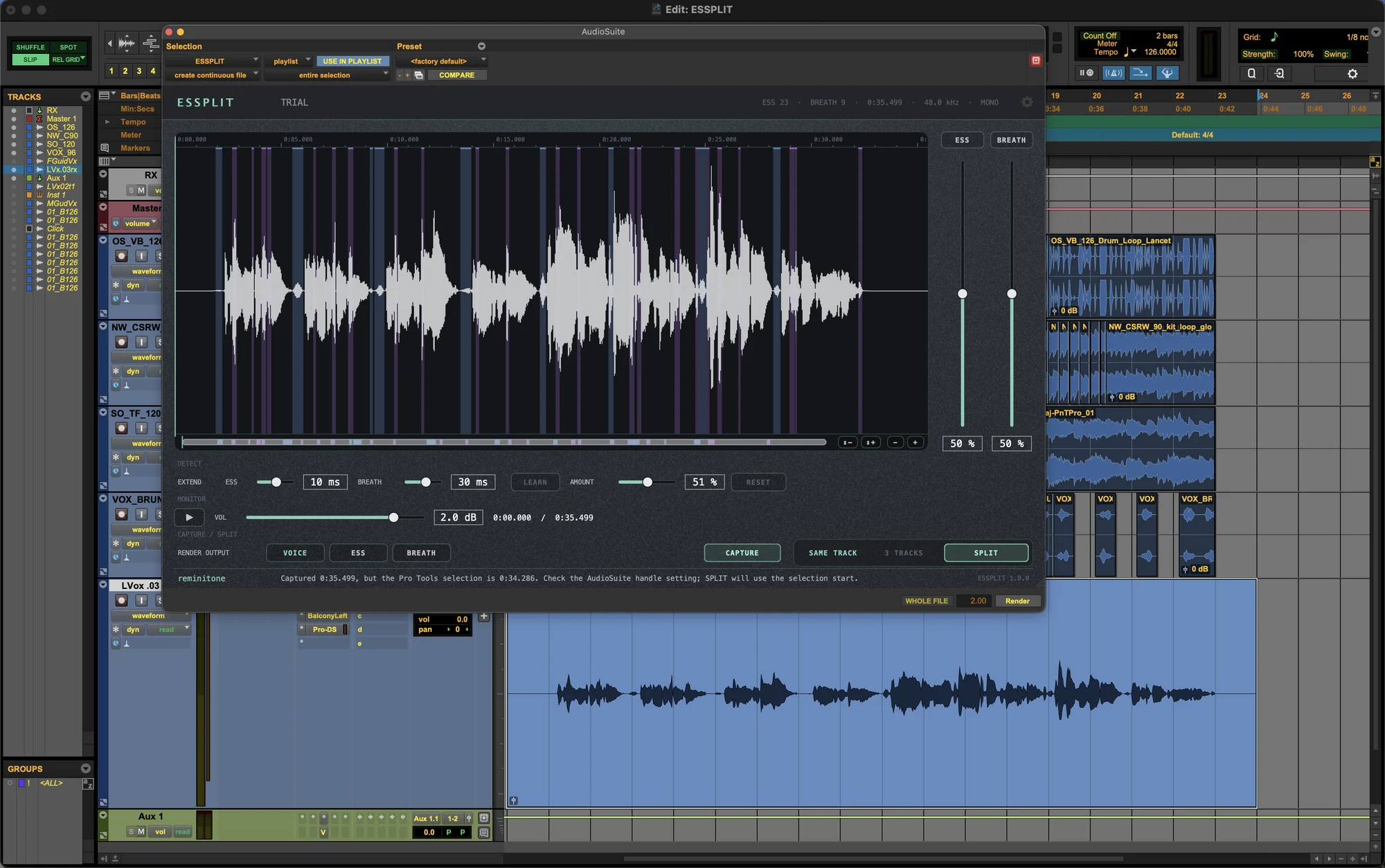
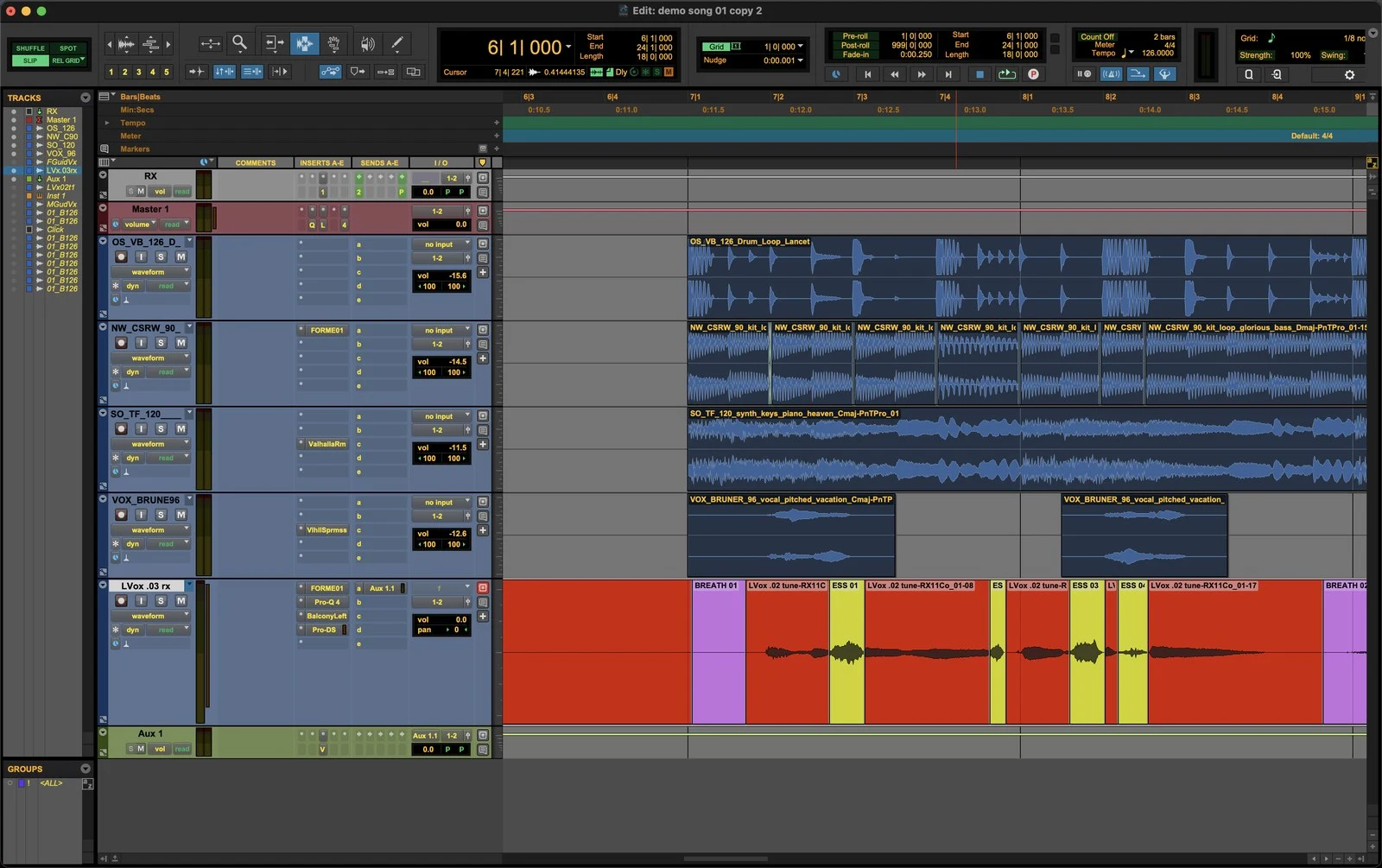
Select a vocal or dialogue range and press CAPTURE: a trained detector finds the esses and breaths in it, in place. ESS and BREATH set how readily a sound counts, EXTEND grows or shrinks every region at both ends, and SOLO lets you hear only one kind. Press SPLIT and the original clip is cut at every region.
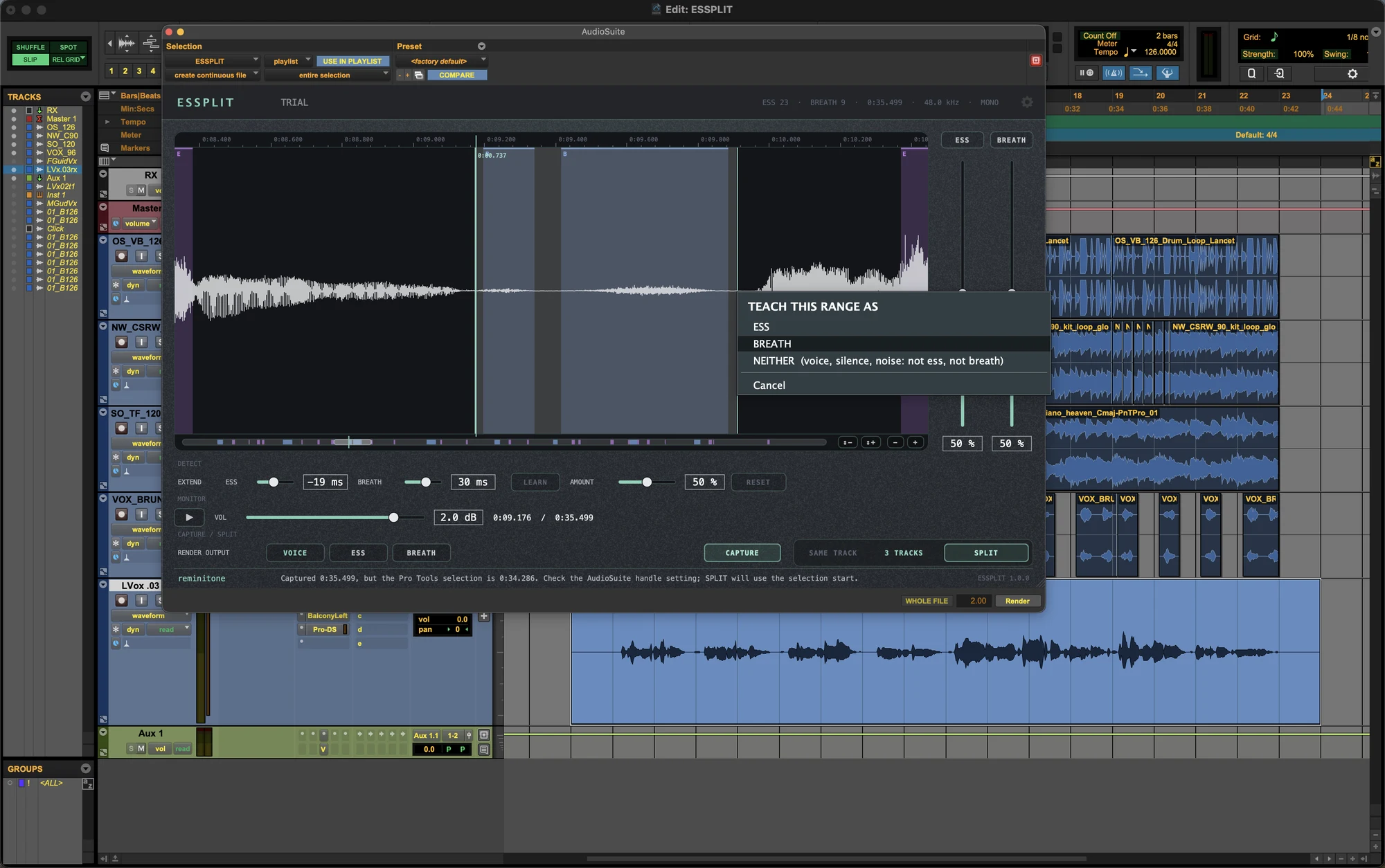
Every voice is different. Drag a range on the waveform and label it ESS, BREATH or NEITHER. Your manual labels stay in place. Press LEARN to update the detection of similar sounds elsewhere in the selection: it follows your examples rather than moving a threshold. AMOUNT sets how strongly the new lesson applies.
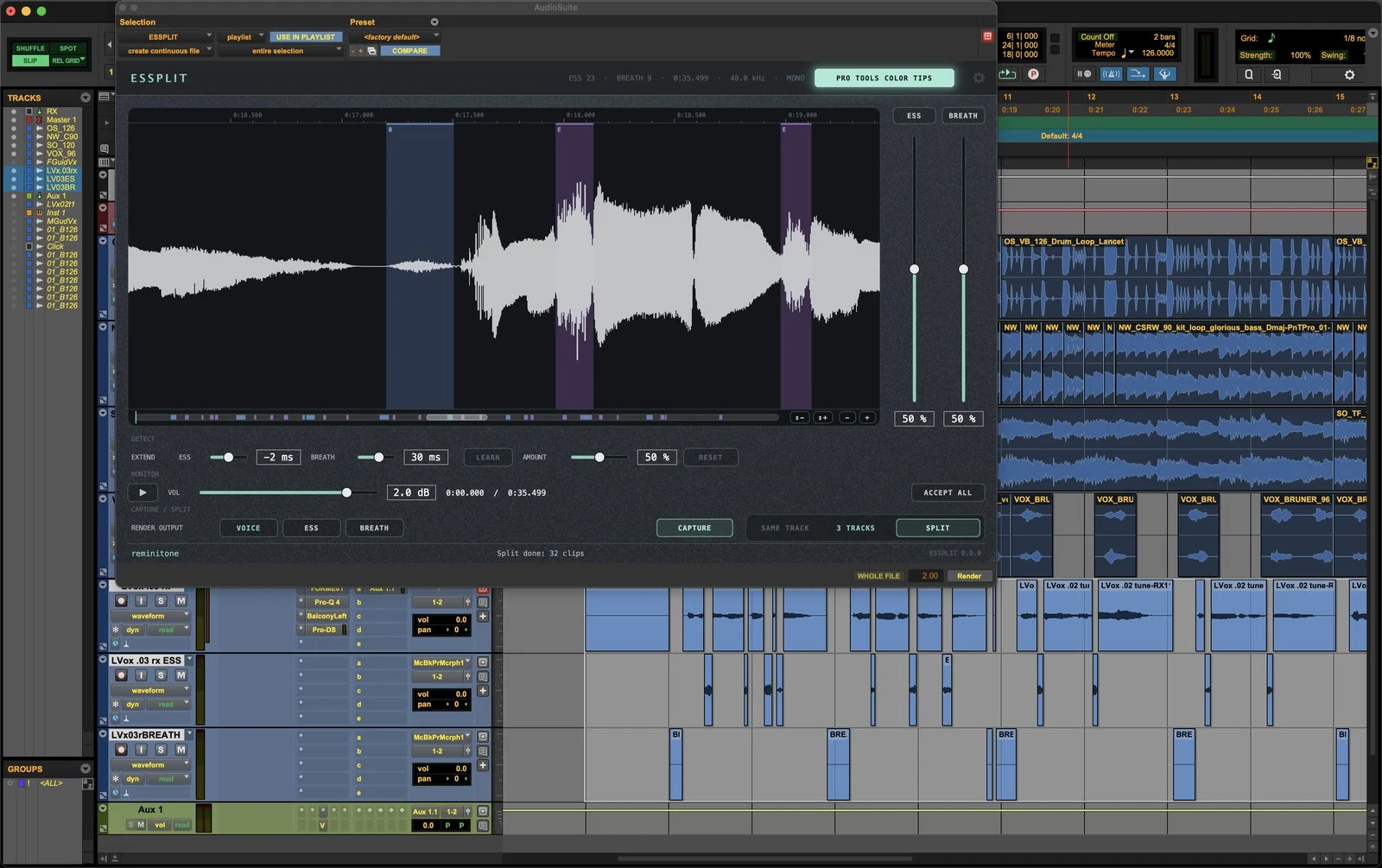
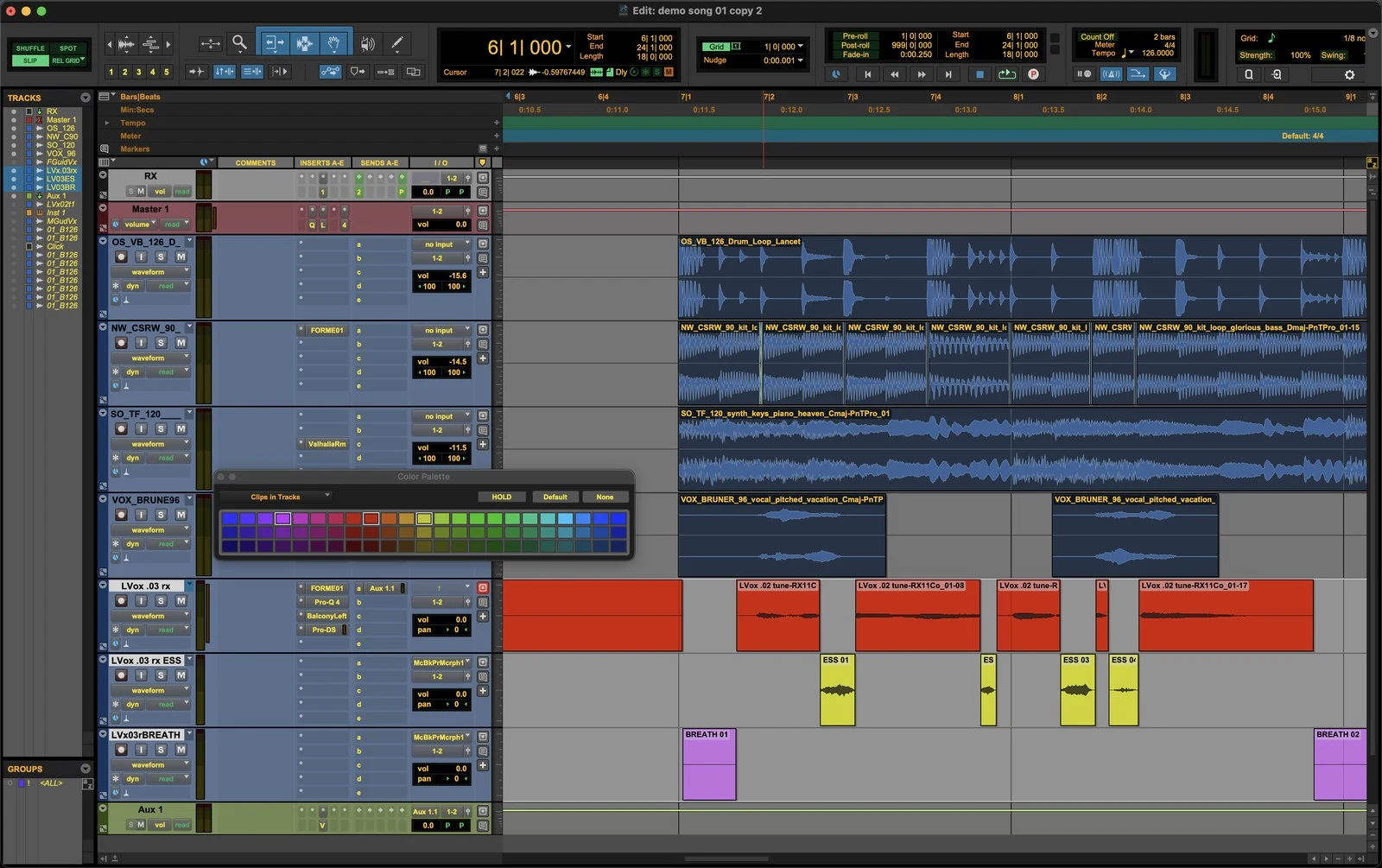
SAME TRACK cuts in place. 3 TRACKS moves the ess and breath clips to their own tracks next to the source — "<track> ESS" and "<track> BREATH" — and leaves the voice where it was. New clips are named ESS 01, BREATH 01, and so on.
Before you start
One installer for everyone. A licence unlocks it permanently, on up to three computers.
Pro Tools and AudioSuite are trademarks of Avid Technology, Inc. ESSPLIT is an independent product of reminitone and is not affiliated with, authorised or endorsed by Avid.